



If you run an online business, a coaching practice, or an e-commerce store in the United States, your website is more than just a digital brochure—it is your storefront, your reputation, and often the engine that funds a meaningful mission.
In the US business culture, reliability and security are taken seriously. Customers expect your checkout to work seamlessly at 6:00 AM on a Saturday just as smoothly as it does on a Tuesday afternoon. Yet over the past few months, thousands of responsible business owners have woken up to a frustrating surprise: their fully built WordPress website suddenly starts throwing "plugin errors," breaking checkout pages, or displaying a blank White Screen of Death (WSOD).
Nothing was intentionally deleted. The design wasn't touched. So why did the site suddenly break?
At DSWEB Pro Studio dsweb.pro, we just completed a deep-level security and architecture upgrade across a multi-site production server on DigitalOcean. In this article, we will walk you through what is happening globally with PHP security right now, share a realistic scenario of how this impacts US store owners, and show you the exact engineering toolkit we use to fix plugin and server crashes with zero live downtime.
1. The Global Catalyst: Critical PHP Security Alerts vs. Legacy Plugins
Behind every WordPress and WooCommerce website sits PHP—the server-side programming language that processes orders, talks to your MySQL database, and runs every single plugin on your site.
Recently, major cloud infrastructure providers (including DigitalOcean) issued urgent security bulletins regarding CVE-2026-109618 and CVE-2026-109619—critical Remote Code Execution (RCE) vulnerabilities in the PHP engine.
Here is why this matters to every website owner:
- Legacy PHP is no longer safe: Older versions like PHP 7.4 and PHP 8.1 have officially reached End-of-Life (EOL). They no longer receive security patches, leaving websites vulnerable to automated exploits.
- The only real fix is PHP 8.2 / 8.3+: The security patches that close these RCE vulnerabilities are only available in modern releases (
PHP 8.2.35+andPHP 8.3.36+). - Why upgrading breaks existing plugins: When PHP evolved from version 7.4 to 8.2 and 8.3, its core Zend Engine became strictly typed. Code flaws that used to trigger a harmless, invisible
Warningin the background on PHP 7.4 now trigger a hardFatal error: Uncaught TypeErroron PHP 8.3—instantly halting your website.
2. A Real-World Scenario: "Sarah’s" California Merchandise Store
To understand how this plays out in real life, imagine a business owner named Sarah in Southern California.
Sarah is a dedicated wellness practitioner who runs a fully built WordPress website. Alongside her coaching services, she operates a WooCommerce store selling branded merchandise to raise funds for teens in crisis. She isn't a server administrator—her focus is on her clients and her charitable mission.
One morning, Sarah notices that customers can no longer complete orders in her merchandise store, and her WordPress dashboard is throwing cryptic plugin warnings.
What happened?
- Her hosting environment flagged outdated PHP packages due to recent security advisories—or auto-updated core components.
- One of her store plugins (or a caching/security tool) attempted to run a filesystem check or string operation using outdated PHP 7.4 logic.
- Because PHP 8+ refuses to accept
nullvalues where strict objects or strings are expected, the plugin crashed mid-execution.
When Sarah reaches out for help, she doesn't need someone to rebuild her entire website from scratch or pitch her an expensive marketing retainer. She needs a Senior PHP & WordPress Engineer who can look under the hood, isolate the exact line of failing code, patch the server environment, and keep her store running smoothly long-term.
3. Why "Trial-and-Error" Debugging Destroys Live Websites
When a typical generalist or junior freelancer tries to fix a PHP 8+ upgrade crash, they usually follow a dangerous routine:
- They log into the hosting control panel and switch the live website from PHP 7.4 to PHP 8.3.
- The live website immediately crashes with a White Screen of Death.
- While real customers are seeing a broken site, the freelancer enables
WP_DEBUGon the live frontend, exposing sensitive file paths to visitors while hunting through error logs. - Panicked, they switch the site back to vulnerable PHP 7.4 and tell the client, "Your plugins aren't compatible."
At DSWEB, we never use your live visitors as guinea pigs.
Furthermore, even standard command-line (CLI) tests often fail to catch WordPress plugin errors for three deeply technical reasons:
- Runtime Debug Suppression (
wp-includes/load.php): Even if you pass error flags in the terminal, WordPress core callswp_debug_mode()insidewp-settings.php. IfWP_DEBUGis set tofalseinwp-config.php, WordPress forcefully overrides PHP settings withini_set('display_errors', 0);, hiding the crash. - The
WP_Fatal_Error_HandlerTrap: Since WordPress 5.2, the core registers its own shutdown handler that swallows fatal errors and outputs a0-byteblank buffer if an output buffer (ob_start()) was opened by a page builder or caching plugin. - Canonical HTTPS Redirects & Full-Page Caching: If a CLI test doesn't emulate an active
HTTPSconnection on port443, WordPress triggersredirect_canonicaland exits before your builder templates (like Oxygen Builder) or WooCommerce hooks ever execute—or LiteSpeed Cache simply serves a static HTML snapshot, masking the broken PHP code underneath.
4. The DSWEB Engineering Solution: Zero-Downtime CLI "X-Ray" Diagnostics
When we needed to migrate our remaining legacy sites from lsphp74 to patched lsphp83 (PHP 8.3.36) on our DigitalOcean + OpenLiteSpeed + CyberPanel infrastructure, we built a custom Python + PHP 8.3 X-Ray Diagnostic Probe.
Instead of switching the live web server and hoping for the best, our script ran via SSH in the background while the live websites continued serving customers without interruption.
How Our Diagnostic Probe Works:
- Parallel Binary Execution: On an OpenLiteSpeed server,
/usr/local/lsws/lsphp83/bin/phpcoexists alongside/usr/local/lsws/lsphp74/bin/php. Our Python tool executes each site’sindex.phpdirectly through the PHP 8.3 binary under the exact Linux user permissions of that domain. - Pre-Defining Core Constants in Memory: Before
wp-config.phpis even loaded, our probe injects:
php
define('WP_DEBUG', true);
define('WP_DEBUG_DISPLAY', true);
define('WP_DISABLE_FATAL_ERROR_HANDLER', true);
define('DONOTCACHEPAGE', true);
define('LITESPEED_DISABLE_ALL', true);
Because PHP constants cannot be redefined once set, wp-config.php cannot turn debugging off, and LiteSpeed Cache is forced to let WordPress compile every single plugin and template from scratch. 3. Full HTTPS Emulation & Database Inspection: The probe emulates a real HTTPS request ($_SERVER['HTTPS'] = 'on', port 443), measures the exact byte length of the rendered HTML buffer (catching 0-byte White Screens instantly), and even scans the MySQL wp_postmeta table for deprecated PHP functions inside custom Oxygen Builder code blocks (ct_builder_shortcodes).
5. The 3 Hidden Culprits We Uncovered and Fixed
Within seconds, our X-Ray audit pinpointed the exact causes of the PHP 8.3 plugin crashes—allowing us to fix them cleanly before switching the live server configuration:
Culprit #1: The WP_Filesystem & ftp_nlist() Fatal TypeError
In our logs, we caught a classic PHP 8+ fatal crash inside WordPress core:
PHP Fatal error: Uncaught TypeError: ftp_nlist(): Argument #1 ($ftp) must be of type FTP\Connection, null given in /wp-admin/includes/class-wp-filesystem-ftpext.php
- Why it happens: Whenever plugins like LiteSpeed Cache (generating Critical CSS), Oxygen Builder (regenerating stylesheet caches), UpdraftPlus, or All In One WP Security check or write files, WordPress initializes
WP_Filesystem(). IfFS_METHODis not explicitly defined inwp-config.php, WordPress may fall back to its FTP wrapper. In PHP 7.4, passing an uninitializednullFTP link intoftp_nlist()only raised a quiet warning. In PHP 8.1+, the resource was replaced with a strictFTP\Connectionobject—causing an immediate fatal crash! - The Fix: We deployed an automated Python patcher that safely injected
define('FS_METHOD', 'direct');intowp-config.phpacross all target domains, forcing WordPress to use direct, native Linux filesystem I/O.
Culprit #2: Missing Compiled C-Extensions in lsphp83
A common server trap occurs when a host upgrades the core PHP binary (lsphp83 to 8.3.36), but forgets to synchronize extension packages like lsphp83-redis, lsphp83-intl, lsphp83-imagick, lsphp83-curl, and lsphp83-apcu.
- If your site uses Redis Object Cache (
object-cache.php) andlsphp83-redisis missing, WordPress crashes before loading a single page withClass "Redis" not found. - Similarly, WooCommerce and Rank Math SEO rely heavily on
curlandintl. We synchronized all compiled binary modules before switching a single virtual host.
Culprit #3: Deprecated Dynamic Class Properties & Null String Handling
PHP 8.2 and 8.3 flag dynamic property creation (Creation of dynamic property... is deprecated) and passing null into string functions like strpos() or mb_convert_encoding(). We audited all active plugins and our custom Must-Use plugins (wp-content/mu-plugins/ds-speed-optimization.php and core-optimizer.php) to ensure strict type safety, clean Google Fonts preconnecting, and zero frontend bloat.
6. Need a Reliable Technical Partner for Your WordPress Site?
Once our Python automation updated wp-config.php and switched the OpenLiteSpeed virtual host configurations (vhost.conf) to lsphp83, we restarted the web server daemon. Every single site came online running PHP 8.3.36—100% protected against the latest RCE security vulnerabilities, rendering over 400 KB of rich e-commerce HTML in milliseconds, with zero downtime.
At DSWEB LLC (registered in Casper, Wyoming), we specialize in being the quiet, ultra-reliable engineering backbone for US small businesses, e-commerce stores, and agencies:
- Clean, Bloat-Free Architecture: Custom PHP, WooCommerce, and Oxygen Builder solutions that consistently hit 90+ Google PageSpeed / Core Web Vitals.
- Fast, Written & Asynchronous Workflow: No endless meetings or agency fluff. You send us the issue, we diagnose the code via SSH/Git, fix the problem cleanly, and send you a clear written report.
- Effortless US B2B Billing: As a US-registered LLC, we offer transparent invoicing and ongoing support plans tailored to your business.
Is your WordPress website or WooCommerce store experiencing plugin issues, slow load times, or PHP update errors?
👉 Contact DSWEB Today for a Free Technical Audit — let’s make your website fast, secure, and worry-free.
Let’s be honest. For a long time, the seasoned development community looked at WordPress with a healthy dose of skepticism. It was often written off as a lightweight blogging engine or a bloated ecosystem held together by duct-tape, third-party page builders, and a prayer. But if you’ve been paying attention to the core architecture shifts over the last couple of years, you’ve noticed a major paradigm shift. WordPress isn’t just fixing bugs anymore; it’s undergoing a fundamental DNA rewrite.
With the release of WordPress 7.0, the core team has drawn a clear line in the sand. We are moving away from monolithic legacy architectures and entering a streamlined, modular era focused on native speed, AI integration, and enterprise-grade collaboration. Here is a deep dive into what changed, where the platform is heading, and how this impacts developers who rely on raw power tools like Oxygen Builder.
The Modern Core Timeline: Breaking Down the Shift (2024–2026)
To understand the engineering philosophy driving the project, we have to look at the recent major release vectors. Notice how WordPress officially transitioned to a single major annual release model to prioritize codebase stability and prevent breaking changes in mission-critical production environments.
In 2024, versions 6.5 and 6.6 laid the technical groundwork. Features like the Font Library and the Interactivity API brought standardized, lightning-fast interactive elements to the frontend—native capabilities that completely bypass the need for heavy jQuery dependencies. Meanwhile, features like Rollback Safety for plugin updates gave sysadmins a much-needed safety net against the infamous "White Screen of Death."
By late 2024 and throughout 2025, versions 6.7 and 6.8 shifted the focus toward structural layout refinement. The introduced "Zoom Out" mode allowed developers to abstract away from granular text editing and manipulate entire page layout architectures via raw block patterns. Under the hood, speculative page loading mechanics were introduced, resulting in near-instantaneous frontend navigation. Simultaneously, the core team began rolling out inline block-level notes, setting the stage for direct team review within the native dashboard.
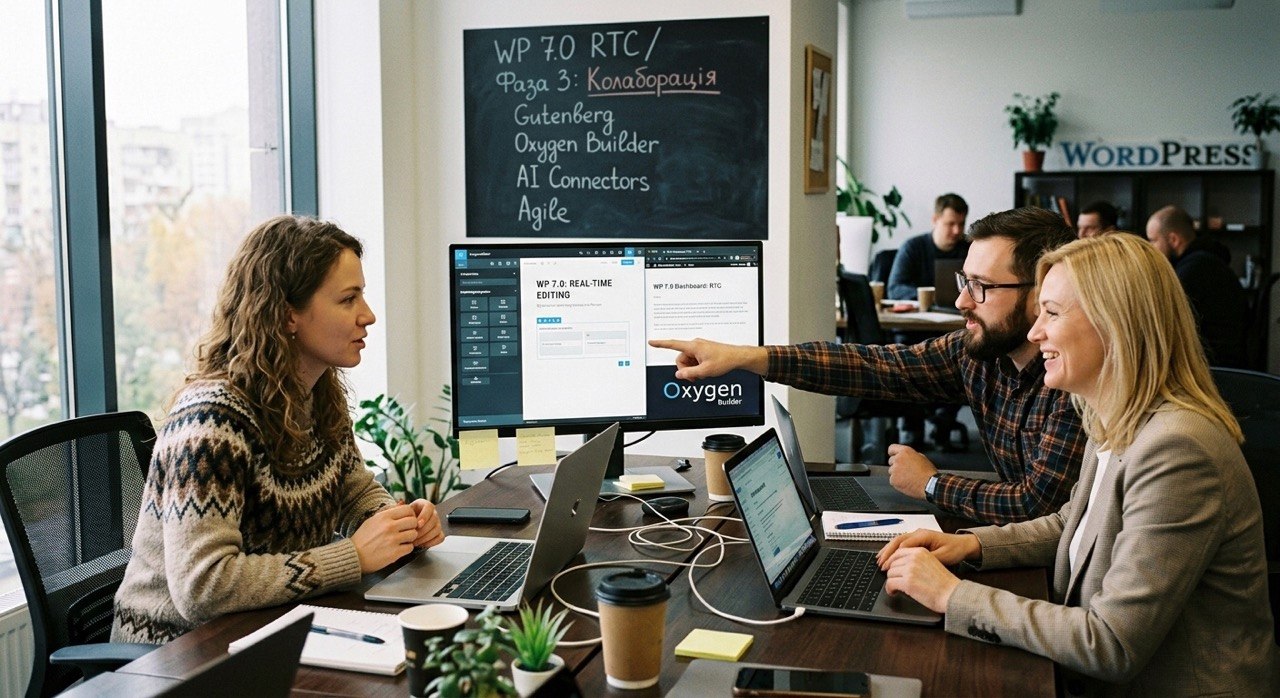
This brings us to WordPress 7.0. This release is an absolute milestone. It introduces native Real-Time Collaboration (RTC), allowing multiple authors to edit a single post concurrently with zero sync conflicts—effectively embedding Google Docs functionality directly into the core engine. Furthermore, 7.0 brings an overhauled, slick WP-Admin interface, an abstract native AI-Connector framework supporting major large language models, and an aggressive push toward modern server environments by bumping the absolute minimum requirement to PHP 7.4+.
The Gutenberg Roadmap: What’s the Real Play?
Every single core architectural update is tied directly to the 4-phase Gutenberg roadmap. Right now, the ecosystem is deeply entrenched in Phase 3: Collaboration. Looking closely at these engineering decisions, we can reverse-engineer three primary long-term strategic goals:
1. Taking on Cloud SaaS Giants
The core team wants to neutralize platforms like Notion, Figma, and Google Docs. The objective is to make sure the entire lifecycle of building a web property—from the initial content staging and live team editing to final asset approval and layout sign-off—happens inside a single, unified browser tab running WordPress.
2. Eliminating "Plugin Hell"
Historically, building a fully featured client site meant piling on dozens of third-party utility plugins for font management, asset optimization, security rollbacks, or AI generation. This approach degraded performance and introduced security vectors. The core team is making the core engine so robust and feature-rich out-of-the-box that third-party bloatware becomes completely obsolete.
3. Building an AI-Ready Foundation
The native AI-Connector API in version 7.0 shows that WordPress is securing its spot as the dominant operating system for the generative web. By standardizing how AI services interact with the block editor, the platform ensures that automated content workflows, dynamic code generation, and layout translation happen natively without fracturing the database structure.
The Flexibility Question: Which Engineering Methodology Wins?
Given the rapid evolution of the web, the most flexible engineering approach is a combination of an Agile Scrum workflow and a strictly component-oriented (block-driven) architecture. WordPress proves this at scale through its development cycle:
- Feature Flags & Iterative Isolation: Bleeding-edge features aren’t pushed directly into core. They spend months being battle-tested inside the isolated Gutenberg plugin ecosystem. The community provides rapid telemetry and feedback, and features are refined across continuous sprints before migrating to the core engine.
- Block-Driven Architecture: By treating every layout element as an isolated, self-contained component, you achieve true architectural decoupling. If you need to refactor a dynamic gallery or an interactive button, you modify that specific block. The rest of the system remains untouched, eliminating the systemic cascade failures that plagued old, monolithic PHP themes.
The Oxygen Builder Paradigm: Collision or Synergy?
So, where does this leave high-performance setups utilizing Oxygen Builder? Oxygen has always been a unique beast. It’s not just a standard page builder; it’s a complete theme-replacement system engineered explicitly for developers who think in clean HTML semantic structures, flexbox, grid, and pure PHP/CSS execution.
When you contrast the trajectory of WordPress 7.0 with Oxygen, it looks like a direct clash of development philosophies. WordPress is optimizing for the mass-market consumer, aiming for a Full Site Editing (FSE) world where a non-technical user can build an entire layout without touching code. Oxygen, on the other hand, is leaning heavily into its identity as a hardcore developer tool, rejecting consumer-grade abstractions to offer total, unadulterated access to the underlying code stack.
Despite this philosophical divergence, the technical synergy is incredibly powerful if you configure your stack correctly. The magic happens by splitting your production pipeline into two distinct environments: the Developer Domain and the Client Content Interface.
Leveraging Oxygen's Gutenberg Integration
By utilizing Oxygen’s native Gutenberg Integration (Client Mode), you get the best of both worlds. You can build your core site architecture, complex layouts, global utility classes, and dynamic content queries inside Oxygen's ultra-clean developer workspace. Oxygen excels here because it outputs immaculate, lightweight DOM trees without the nested div-wrapper hell generated by alternative site builders.
Once your structural layout is locked down, you map those components directly to native Gutenberg blocks. When your clients log into the backend, they don't see the complex Oxygen workspace—instead, they land in the native WordPress 7.0 block editor. They can instantly leverage the platform's brand-new Real-Time Collaboration engines, leave inline editorial notes, and utilize core AI assistant tools to draft copy, all while working inside an interface that is completely locked down. They get a modern SaaS-like editing experience, and you get the peace of mind knowing they cannot accidentally break your global CSS classes or responsive layout structures.
The Final Verdict
WordPress and Oxygen are running on parallel tracks that complement each other perfectly. WordPress 7.0 is successfully building a robust, intelligent, and highly collaborative content infrastructure. Oxygen remains an industry-standard engine for rendering custom frontend code on top of that infrastructure. For elite developers, this isn't a cue to abandon ship and move to native core blocks; it's an opportunity to build ultra-fast, secure, custom web properties that offer a world-class backend experience for clients without sacrificing an ounce of performance or developer control.
The Evolution of a Developer’s Best Friend
Look, I’ve been in the WordPress trenches for over a decade, and if there’s one tool that has consistently separated the pros from the hobbyists, it’s Oxygen. We all know the story: Soflyy gave us a builder that didn’t just drag and drop—it actually let us write clean, performant code without the bloat of traditional themes. But as the web evolved, even our favorite tools started to show their age. We’ve all felt that specific "Oxygen Classic" fatigue—the builder slowing down on a massive landing page, or the manual grind of managing CSS classes one by one. It was our reliable workhorse, but we were pushing it to its absolute limits.

A Professional Nightmare Solved
I remember a project last year for a high-growth SaaS client where we had over fifty unique sections on a single page. Managing the design system was a nightmare. If I needed to adjust a padding class across twenty different elements, I had to click every... single... one. It was soul-crushing work that felt more like data entry than engineering. That’s the "real pain" we lived with. When the news hit that Oxygen 6.1 was dropping as a total rewrite from the ground up, I’ll be honest—I was nervous. We’ve all seen developers abandon their core products for shiny new toys. But the team at Soflyy? They absolute crushed it.
Respect to the Visionaries at Soflyy
I want to take a moment to tip my hat to the devs behind this. In an industry where most companies would just slap a new UI on an old engine and call it a day, these guys decided to rebuild the entire foundation. That takes guts. They didn’t just fix bugs; they rethought how a professional visual builder should function in 2026. They stayed true to their "developer-first" roots while modernizing the tech stack to handle the demands of modern CSS and PHP 8.4. Seeing that kind of commitment to excellence and to their lifetime license holders is exactly why we stick with them. They are leaders who are clearly as obsessed with clean code as we are.
The Power of Multi-Selection and Native Variables
The transition from Oxygen Classic to 6.1 isn’t just an update; it’s a workflow revolution. The headline feature for me is multi-element selection. It sounds simple, but being able to Cmd-click ten elements and bulk-edit their properties in one go has literally cut our development time by 30%. Add native CSS variable support into the mix, and suddenly we aren't just building pages—при we are building living, breathing design systems. We can now swap entire color palettes or typography scales in seconds without hunting through stylesheets. It’s the kind of precision that makes my developer heart sing.
Delivering Superior Value to dsweb.pro Clients
At the end of the day, our job at dsweb.pro is to deliver the fastest, most scalable websites possible for our clients. Oxygen 6.1 allows us to do exactly that with significantly less "tech debt" than before. Our client sites are now leaner, the backends are faster for their teams to manage, and the performance scores are hitting the green without even trying. This shift from Classic to 6.1 means we spend less time fighting the tool and more time solving our clients' business problems. It’s a win-win that proves why investing in professional-grade tools is the only way to stay ahead in this game.
I remember sitting at my desk at 3 AM, staring at a "Database Error" screen while my client’s launch was peaking. I was paying $300 a month for so-called 'VIP managed hosting,' yet here I was, stuck in a support queue behind forty other people. That night changed everything I thought I knew about where a WordPress site belongs.
For years, I bought into the myth that if you want a fast, secure WordPress site for the US market, you have to pay a premium for "managed" services. We’ve all seen the ads. They promise one-click magic, infinite scalability, and support teams that supposedly dream in PHP. But the reality I found was much grittier. Most of those high-ticket hosts are just fancy wrappers around the same hardware you can rent elsewhere, but with heavy-handed caching that breaks your plugins and "optimization" features that actually lock you out of your own server. I was tired of paying for a gated community where I didn't even have the keys to my own front door.
The Breaking Point of Managed Bloat
The frustration didn't come from a single crash, but from the realization that I was paying for overhead I didn't need. Every time I wanted to tweak a server-level setting or optimize a specific database query, I had to open a ticket. I was a developer being treated like a novice who shouldn't touch the "scary" stuff under the hood. My site's performance was hit-or-miss, throttled by shared resources that were hidden behind glossy dashboards. I realized that 'managed' often just means 'limited.' I was losing money, losing time, and most importantly, I was losing the ability to actually solve my own problems when they mattered most.
Discovering the Power of Bare Metal Control
When I finally decided to migrate a test site to DigitalOcean, I was honestly a bit nervous. Like many devs who got comfortable with cPanel or proprietary dashboards, the idea of managing a VPS felt like a chore. But once I spun up my first Droplet, the feeling was electric. It was pure, unadulterated performance. No bloatware, no forced plugins that "help" with caching but actually just slow down the admin dashboard, and no arbitrary limits on how many visits I could have before getting hit with an overage fee. I realized that for the price of a couple of lattes, I could have a dedicated slice of a high-performance SSD cloud that outperformed my $300-a-month plan in every single benchmark.
Why the American Market Demands This Shift
If you're building sites for a US-based audience, speed isn't just a metric; it's your conversion rate. American users have zero patience for a site that hangs for two seconds while a bloated "managed" host figures out its caching logic. DigitalOcean's infrastructure is built for this kind of demand. By hosting my WordPress sites on their NY or San Francisco data centers, I noticed an immediate drop in Time to First Byte (TTFB). I wasn't just saving money; I was providing a better experience for the end-user. The ability to choose my own stack—whether it’s Nginx, LiteSpeed, or a custom Docker setup—meant I could tailor the environment to the specific needs of the project, rather than forcing the project into a one-size-fits-all box.
The Myth of Complexity vs. The Reality of Freedom
There’s this common fear that DigitalOcean is "too hard" for WordPress. That’s perhaps the biggest lie the expensive hosts tell you to keep you paying. Between the Marketplace apps that install a full WordPress stack in seconds and modern control panels that you can layer on top, the "complexity" argument has vanished. I found that I actually spent less time maintaining my Droplet than I did fighting with the restrictive settings of my old host. I had the logs, I had the root access, and I had the snapshots. If I wanted to test a major update, I’d just clone the Droplet, try it out, and destroy the evidence if it failed. That’s the kind of workflow that lets you sleep at night.
Final Thoughts on Taking the Leap
Looking back at those invoices for hundreds of dollars, I feel a mix of regret and relief. Regret for the money wasted, but relief that I finally broke out of the cycle. If you’re a developer or a business owner who cares about how your site actually runs, you owe it to yourself to look under the hood. DigitalOcean isn't just a hosting provider; it’s a toolbox. It gave me back my autonomy and saved my clients thousands of dollars while making their sites faster than ever. It might feel like a big jump to leave the "comfort" of a managed host, but once you experience the speed and freedom of a well-configured Droplet, you’ll never want to go back to a gated community again.
If you're ready to stop paying for marketing fluff and start paying for actual performance, you can get started with a massive credit through the link below. It’s enough to run a production-ready site for months without spending a dime of your own money. Test it, break it, build something incredible, and see for yourself why the pros have moved their stacks here.

Diving into the World of AI-Powered Coding Tools
As someone who's been knee-deep in the trenches of software development for over a decade, I've seen tools come and go, but the rise of AI assistants like v0.app and Cursor IDE feels like a genuine game-changer. Back in the day, we'd spend hours fiddling with boilerplate code or sketching wireframes in Figma, but now? These platforms let you whip up functional prototypes or refactor entire codebases with a few well-crafted prompts. v0, cooked up by the folks at Vercel, is all about turning your wild ideas into sleek React components faster than you can say "Tailwind CSS." Meanwhile, Cursor takes the familiar VS Code foundation and supercharges it with AI smarts, making it feel like you've got a genius co-pilot handling the heavy lifting across frontend, backend, and everything in between. In this piece, I'll break down what sets them apart, drawing from real-world tests and updates rolling into 2026, so you can pick the right tool for your workflow.
Unpacking v0: The UI Generation Powerhouse
Imagine this: You're brainstorming a new dashboard for your SaaS app, and instead of starting from scratch in a design tool, you just type out a description like "a responsive admin panel with charts and user tables in dark mode." Hit enter, and v0 spins up a fully functional React component, complete with Tailwind CSS styling and Shadcn UI elements. That's the magic of v0—it's laser-focused on frontend prototyping. Launched by Vercel, it integrates seamlessly with their ecosystem, meaning you can deploy your creation live in seconds with one click. What really stands out is its "agentic" approach: The AI doesn't just generate code; it plans the structure, connects to databases if needed, and even suggests improvements. Sure, it supports other frameworks like Vue or Svelte, and libraries such as MUI or Bootstrap, but React is where it shines brightest. In my experience tinkering with it, v0 cuts down iteration time on UI elements dramatically, though those iterations still clock in at around 30 seconds each—faster than manual coding, but not instantaneous like dragging in Figma. And with updates in 2025 adding full-stack stubs and API integrations, it's evolving beyond pure frontend, letting you stub out backend logic without leaving the platform.
Exploring Cursor IDE: The All-Rounder AI Editor
Now, shift gears to Cursor, which feels more like an evolution of your everyday IDE rather than a specialized generator. Built on the bones of VS Code, Cursor embeds AI assistance right into your coding environment. Picture this: You're deep in a sprawling repository, and you need to refactor a authentication system across multiple files. With Cursor's Composer mode—powered by their in-house LLM—you prompt it once, and it handles the multi-file edits, autocompletions, and even debugging suggestions in context. It's not just about generating snippets; it's about understanding your entire codebase, indexing it for quick queries like "where's the token refresh logic?" From my hands-on sessions, Cursor excels in full-cycle development, supporting languages beyond JavaScript, like Python or Go, and covering backend tasks that v0 leaves to manual integration. Tests from late 2025 show it outperforming v0 in code quality by about 2.9 points on average, and tasks often wrap up in under 30 seconds. Plus, with features like team collaboration and privacy controls, it's built for professional devs scaling up projects. If you're coming from VS Code, the learning curve is minimal—it's like your old editor got a brain upgrade.
Head-to-Head: Where They Differ and Overlap
Here's where the rubber meets the road in the v0 vs. Cursor showdown. v0 is your go-to for rapid UI prototyping—think turning text prompts into production-ready React code with templates for dashboards or forms. It's fantastic for frontend devs or designers dipping into code, accelerating the jump from idea to deployable site via Vercel. But it falls short on backend depth; while 2025 updates added stubs, it's not designed for complex logic or existing repos. Cursor, on the flip side, thrives in those scenarios. It's an AI-enhanced IDE that adapts to your project without rigid templates, offering refactoring, autocompletion, and agent planning across the stack. In benchmarks, Cursor's speed and accuracy edge out v0 for comprehensive tasks, but it lacks v0's visual flair for pure UI creation from scratch. Both share similar pricing—free tiers with premiums kicking in at $20/month—and neither is lightning-fast on iterations, but they complement each other nicely. I've found myself using v0 to bootstrap UIs and then importing into Cursor for refinement, creating a hybrid workflow that's boosted my productivity tenfold.
Pricing, Performance, and Practical Tips
Let's talk dollars and sense. Both tools offer free plans to get your feet wet, but for unlimited access, you're looking at $20 per month on premium tiers. v0's model is credit-based for heavier use, while Cursor emphasizes usage controls for teams. Performance-wise, Cursor's Composer LLM is a standout, zipping through tasks four times faster than some competitors, according to 2025 reviews. v0, meanwhile, nails accessibility and design systems, letting you customize colors, typography, and even export to GitHub for seamless handoffs. A pro tip from my toolkit: If you're a React aficionado, start with v0 for prototypes—it's unbeatable for that "wow" moment when a prompt becomes a live app. For broader development, Cursor's repo awareness and multi-language support make it indispensable. And don't sleep on integrations; v0's Vercel tie-in means instant hosting, while Cursor plays nice with GitHub and privacy-focused teams. In 2026, with AI evolving, expect even tighter integrations, but right now, these are solid picks.
When to Choose One Over the Other
Picking between v0 and Cursor boils down to your role and project stage. If you're a frontend wizard or PM needing quick mocks, v0 is your secret weapon—its focus on beautiful, functional UIs without the backend hassle saves hours. I've used it to prototype client dashboards in minutes, impressing stakeholders before diving deeper. Cursor, however, is for the full-stack pros or teams maintaining large codebases. Its AI smarts shine in refactoring legacy code or building complex features, where context is king. Not every tool does everything; v0 won't replace a full IDE for intricate logic, and Cursor isn't optimized for zero-to-hero UI generation. But together? They're a powerhouse duo. As we push into 2026, keep an eye on updates—v0's full-stack push and Cursor's model expansions could blur the lines further.
Wrapping It Up: The Future of AI in Dev
In the end, v0 and Cursor represent two sides of the AI coding coin: one for flashy, fast UIs and the other for deep, intelligent editing. As an expert who's integrated both into my daily grind, I can say they're not rivals but allies in making dev life easier. Whether you're bootstrapping a startup idea or scaling enterprise software, these tools cut the fluff and let you focus on innovation. Dive in, experiment, and see how they fit your style— the AI revolution in coding is here, and it's only getting smarter.
Overview of the US Web Development Market
The US web development market in 2025 is a powerhouse, driven by the relentless demand for digital solutions across businesses of all sizes. The global web dev industry is projected to hit $130.9 billion by 2032, and the US is leading the charge with its massive e-commerce boom (15% of retail sales) and cutting-edge tech adoption. From local startups to Fortune 500 giants, companies are pouring resources into websites that deliver speed, security, mobile responsiveness, and killer SEO to rank high on Google. Key trends shaping 2025 include AI-powered tools for auto-generating content and designs, voice search driving up to 50% of commercial queries, and the rise of Web 3.0 with decentralized tech like blockchain for data security. Businesses are also doubling down on integrations with payment gateways like Stripe and PayPal, plus analytics and marketing platforms like HubSpot and Google Analytics to stay ahead of the curve.
The market splits into three main buckets: website builders (Wix, Squarespace, Webflow), content management systems (CMS) like WordPress, Joomla, and Drupal, and custom development with frameworks like React or Laravel. Builders are a hit with small businesses for their plug-and-play simplicity, while CMS platforms cater to those needing flexibility and scalability. Custom dev is the go-to for big players with unique needs, but its hefty price tag makes it less accessible. WordPress dominates with a 43% share of all websites and 62% of the CMS market, leaving competitors like Shopify (6%) and Wix (5%) in the dust. Trends like headless CMS, where content is served via APIs, Core Web Vitals for SEO, and blockchain for security are reshaping the game. US businesses want platforms that balance ease of use, customization, and cost-efficiency to keep up with the fast-paced digital landscape.
Selection of Platforms for Comparison
The US market is flooded with options for spinning up websites, each with its own strengths and quirks. For this analysis, we scoped out a range of platforms: Wix, Shopify, Squarespace, Webflow, Joomla, Drupal, Magento, Ghost, ExpressionEngine, Tilda, Weblium, and Jimdo. Wix is a crowd favorite for its drag-and-drop simplicity, perfect for newbies and small businesses looking to go live fast. Shopify is the king of e-commerce, offering robust tools for managing online stores, from payment gateways to analytics. Squarespace shines with its sleek templates, ideal for creative projects like portfolios or restaurant sites. Webflow blends builder and CMS features, letting designers craft pixel-perfect sites without diving deep into code. Joomla and Drupal, open-source CMS options, are less popular in the US due to their steeper learning curves. Magento is a beast for large-scale e-commerce but demands serious technical chops. Ghost caters to bloggers with a lightweight interface, while ExpressionEngine, Tilda, Weblium, and Jimdo have smaller followings due to limited ecosystems or regional focus.
After sizing up the market and US business needs, we narrowed it down to five heavyweights: WordPress, Wix, Shopify, Squarespace, and Webflow. These platforms lead the pack in the US, covering a wide range of use cases: WordPress is the Swiss Army knife for any site type, Wix and Squarespace are go-tos for quick launches, Shopify rules e-commerce, and Webflow is the darling of designers chasing unique aesthetics. This lineup reflects the diversity of web dev approaches, making it ideal for a deep-dive comparison tailored to American businesses.
In-Depth Analysis of Platforms
WordPress
WordPress is the undisputed champ of CMS platforms, powering 43% of all websites and 62% of the CMS market, from big names like The New York Times to Microsoft. WordPress.org, the self-hosted version, gives you full control over hosting, code, and integrations, while WordPress.com is a hosted option for beginners with less flexibility. Usability depends on your setup: WordPress.org requires some tech know-how to configure hosting, themes, and plugins, but its massive ecosystem—over 60,000 free plugins and 20,000 themes—lets you build anything from blogs to full-blown marketplaces. For instance, WooCommerce, used by 8.8% of all sites, turns WordPress into a robust e-commerce platform with support for payments, logistics, and analytics.
Customization is where WordPress flexes hard. Its open-source nature lets devs hack away at PHP, CSS, and JavaScript, crafting custom themes and plugins. Custom Post Types and taxonomies make it a near-framework for building tailored business logic, like event management or product catalogs. Visual editors like Elementor and Divi let non-coders whip up complex designs, while pros can go full custom with minimal plugin reliance. Scalability is a breeze, supporting everything from tiny blogs to sites with millions of visitors, thanks to flexible hosting options (from $3/month on SiteGround to AWS cloud setups) and optimization plugins like WP Rocket. SEO is top-notch, with plugins like Yoast SEO and Rank Math offering granular control over metadata, hreflang tags, sitemaps, and schema.org markup. Security hinges on proper setup—96% of vulnerabilities come from plugins—but regular updates and tools like Wordfence keep things locked down. Costs for WordPress.org include hosting ($3–$50/month), domains ($10–$20/year), and premium plugins ($20–$200), while WordPress.com ranges from $4–$45/month. Support comes from a massive community, forums, and pro agencies.
Wix
Wix is a cloud-based website builder that’s a hit in the US for its dead-simple drag-and-drop interface. With over 800 templates tailored for niches like restaurants, portfolios, and e-commerce, it’s a go-to for non-techies looking to spin up a site fast. Usability is its biggest selling point: you can have a site live in hours, tweaking blocks in a visual editor without touching code. But customization is a bit of a letdown—you’re locked into templates, and switching them mid-project means starting from scratch. The Wix App Market offers hundreds of apps to juice up functionality, but premium ones can rack up costs.
For e-commerce, Wix works for small stores with a few dozen products, supporting integrations with PayPal and Stripe. But it falls short for large catalogs compared to Shopify due to clunky inventory management. SEO has improved, but it’s still behind WordPress, with limited control over URLs and metadata. Scalability suits small to mid-sized projects, but high-traffic sites hit roadblocks due to Wix’s closed ecosystem. Costs start at $16/month for basic plans and go up to $59/month for business plans with e-commerce features. Security is handled with built-in SSL and auto-updates, but migrating a site off Wix is a hassle. It’s a solid pick for quick launches but lacks the flexibility for complex projects.
Shopify
Shopify is the e-commerce juggernaut, holding a 6% CMS market share and powering brands like Gymshark and Allbirds. Its intuitive dashboard lets you set up a store, add products, configure shipping, and hook up payment gateways like Shopify Payments, Stripe, and PayPal in no time. The analytics panel dishes out detailed sales and customer behavior data, a must-have for US businesses.
Customization is where Shopify stumbles a bit compared to WordPress. Theme tweaks via its proprietary Liquid language require coding skills, and complex functionality leans heavily on the Shopify App Store’s 6,000+ apps, many of which come with a price tag. Scalability is a strong suit, handling stores with thousands of products and heavy traffic, especially on the Shopify Plus plan ($2,000/month). SEO is solid but lags behind WordPress due to less flexibility with metadata. Costs start at $39/month, but apps and transaction fees (0.5–2%) can pile up. Security is tight with built-in SSL and auto-updates. Shopify’s a beast for e-commerce but less versatile for non-store sites like blogs or portfolios.
Squarespace
Squarespace is known for its drop-dead gorgeous templates, making it a favorite for creative projects like photographer portfolios or restaurant sites. Popular in the US among small businesses, its drag-and-drop editor lets you build sites without coding, though the grid-based system feels less flexible than Wix. E-commerce features work for small stores but can’t handle large catalogs, putting it behind Shopify.
Customization is limited to templates and built-in tools. You can tweak CSS, but complex functionality requires third-party integrations like Mailchimp or Zapier. Scalability fits small to mid-sized projects, but high-traffic sites hit limits due to platform constraints. SEO covers basics like metadata and sitemaps but lacks the depth of WordPress. Costs range from $16/month to $49/month for business plans, including SSL and analytics. The closed ecosystem makes site migration tricky. Squarespace is great for creative projects but falls short in scalability and customization.
Webflow
Webflow is a hybrid platform blending builder and CMS features, a darling among US designers and agencies. It lets you craft pixel-perfect, responsive designs without diving too deep into code, making it a strong WordPress rival for design-heavy projects. The interface is trickier than Wix or Squarespace but a breeze for designers with basic CSS and HTML skills. E-commerce features are decent for small stores but lag behind Shopify.
Customization is a standout: Webflow lets you build bespoke designs, edit CSS and JavaScript, and even export clean code for further dev work. Functional extensions rely on third-party integrations like Zapier. Scalability works for mid-sized projects, but high-traffic sites need extra hosting and optimization investments. SEO is solid but doesn’t match WordPress’s plugin-powered flexibility. Costs start at $14/month and go up to $39/month for business plans. Security is covered with built-in SSL and Webflow’s hosting. It’s a killer tool for designers but demands more learning and investment for scaling.
Comparative Analysis of Platforms
Stacking up WordPress, Wix, Shopify, Squarespace, and Webflow across key metrics—usability, customization, scalability, e-commerce, SEO, security, support, and cost—gives a clear picture of their fit for US businesses. WordPress is the ultimate all-rounder, handling any site type with its massive plugin and theme ecosystem. Wix and Squarespace are built for speed and simplicity, ideal for beginners but limited for complex projects. Shopify dominates e-commerce but struggles outside of it. Webflow is a designer’s dream but needs more time to master.
Usability-wise, Wix and Squarespace take the crown with intuitive drag-and-drop editors, while WordPress and Webflow demand more technical savvy to unlock their full potential. Shopify’s interface is slick for e-commerce. Customization is WordPress’s forte, letting you code custom solutions or use visual editors, practically turning it into a framework. Webflow offers killer design flexibility but falls short on functional extensions. Wix and Squarespace are template-bound, and Shopify leans on Liquid for tweaks. Scalability shines with WordPress and Shopify, while Wix, Squarespace, and Webflow are better for small to mid-sized projects. For e-commerce, Shopify leads, but WordPress with WooCommerce holds its own. SEO is where WordPress flexes, with plugins offering unmatched control, while others stick to basics. Security in WordPress depends on setup but is robust with tools like Wordfence; Wix, Shopify, and Squarespace handle it out of the box. WordPress’s cost is flexible, saving on core features, while Shopify and Webflow can get pricey with apps and plans. Support for WordPress comes from a huge community, while competitors rely on in-house teams.
Customization and Scalability
Customization is a big deal for US businesses looking to build sites that scream their brand. WordPress is the gold standard here, with open-source code letting devs tinker with PHP, CSS, and JavaScript to craft custom themes and plugins. Custom Post Types and taxonomies let you tailor business logic for anything from event systems to product catalogs. Visual editors like Elementor and Divi make complex designs accessible to non-coders, while pros can go full custom, treating WordPress like a framework with minimal plugin reliance. Wix and Squarespace lock you into templates, and switching designs mid-project is a pain. Shopify’s Liquid language allows theme edits but needs coding skills for anything fancy. Webflow nails pixel-perfect designs but leans on third-party tools for advanced functionality.
Scalability is critical for businesses eyeing growth. WordPress can scale like crazy, handling everything from small blogs to sites with millions of visitors, thanks to flexible hosting (from $3/month budget plans to AWS) and optimization tools like WP Rocket. Caching, CDNs, and database tweaks keep performance tight. Shopify scales well for e-commerce but gets expensive with premium plans and apps. Wix and Squarespace are solid for small to mid-sized projects but choke on high traffic due to their closed architectures. Webflow handles mid-sized projects but needs extra investment for large-scale sites. WordPress’s framework-like flexibility lets you build lean, custom solutions that stay performant as you grow.
Business Case Studies
Case Study 1: Bean & Brew Coffee Shop – Scaling Up with WordPress

Bean & Brew, a cozy coffee shop in Seattle, Washington, is a textbook case of a small business leveling up its online game with WordPress. Initially, they ran a basic Wix site with a menu and contact info, but Wix’s e-commerce and SEO limitations held back online sales and local traffic. In 2024, they switched to WordPress.org, hosting on SiteGround ($6/month) and using the free Astra theme, customized via Elementor Pro ($59/year). The WooCommerce plugin turned their site into a full-fledged online store with a coffee catalog, PayPal and Stripe integrations, and local delivery via ShipStation ($15/month). Yoast SEO Premium ($99/year) optimized pages for local queries like “best coffee Seattle” or “order coffee online,” boosting organic traffic by 220% in five months. Online sales now account for 35% of revenue.
Bean & Brew added a loyalty program with myCRED ($49/year), letting customers earn points per purchase, and hooked up email marketing with Mailchimp’s free plan (up to 500 contacts). Astra’s responsive design ensured mobile optimization, aligning with voice search trends. A custom table reservation form was coded in PHP and JavaScript, skipping extra plugins to keep things lean. Security was locked down with Wordfence ($99/year), and WP Rocket ($59/year) kept load times snappy. Total costs were $350 for premium plugins and $72/year for hosting, a steal compared to Wix’s $25/month plan. WordPress solved their functionality woes, juiced up SEO, and opened new revenue streams, driving customer growth and profits.
Case Study 2: BrightLaw Law Firm – Fully Custom WordPress Site as a Framework

BrightLaw, a New York-based law firm specializing in corporate law, needed a site that reflected its brand, secured client data, and handled complex consultation logic. In 2024, they commissioned a fully custom WordPress.org site, minimizing third-party plugins to ensure performance and security. Developers built a custom theme from the WordPress Starter Theme (_s), using PHP to create Custom Post Types for case studies, attorney profiles, and client testimonials. A consultation booking system with attorney availability checks was coded using JavaScript and WordPress’s REST API, integrating seamlessly with their internal CRM without extra plugins. User authentication leaned on OAuth 2.0 for bulletproof client data protection.
The site’s design was built from scratch with CSS Grid and Flexbox for responsive layouts that matched BrightLaw’s branding. SEO was handled with custom metadata, coded without plugins, and schema.org markup to boost Google visibility. Hosted on AWS with Cloudflare CDN, the site achieved 1.8-second load times and scaled to 600,000 monthly visitors. The only third-party plugin was WP Rocket ($59/year) for caching. Security was fortified with custom server configs and WordPress Core updates. Development cost $12,000, with ongoing expenses of $60/month for hosting and $15/year for the domain. The site automated consultation bookings, cutting admin costs by 45%, and drove a 180% spike in inquiries over seven months via organic search. This case shows how WordPress, used as a framework, delivers highly customized solutions with minimal plugin dependency, perfect for specialized businesses.
Conclusion
Choosing a website platform depends on your goals, budget, and technical expertise. WordPress offers unmatched flexibility and scalability, making it ideal for projects of any size. Wix and Squarespace are great for quick launches of small sites, Shopify owns e-commerce, and Webflow is a designer’s playground. Each platform has its strengths, but WordPress stands out for its customization, cost-efficiency, and framework-like potential. US businesses should weigh their needs, test platforms, and factor in long-term costs to make an informed call.
In this article, I’ll share our experience tackling two challenging issues on a server running CyberPanel and OpenLiteSpeed: slow WordPress admin panels and the inaccessibility of the OpenLiteSpeed WebAdmin interface on port 7080. This case study is designed to help server administrators, web developers, and WordPress site owners facing similar problems. We’ll walk through the entire process—from diagnosis to optimization—complete with all commands, explanations, and takeaways.
Initial Situation
On a server with CyberPanel, hosted on Digital Ocean (a droplet with 1 GB RAM and 8 CPUs), I noticed the following:
- WordPress admin panels were loading very slowly (up to 10–15 seconds).
- The OpenLiteSpeed WebAdmin (the server management interface) at
http://[SERVER_IP]:7080wouldn’t open in the browser. - Server load was high: numerous PHP processes (
lsphp), an average load (load average) exceeding 10 with 8 CPUs, and swap memory heavily utilized (400 MB out of 981 MB).
The domain [olddomain.com], previously used for WebAdmin, had been removed, and its Let’s Encrypt certificates had expired (since June 2022), causing issues with HTTPS access.
Step 1: Diagnosing WebAdmin OpenLiteSpeed Inaccessibility
The first issue was that the OpenLiteSpeed WebAdmin at http://[SERVER_IP]:7080 wasn’t accessible. I started with some basic checks.
Checking Port 7080
I ran the following command to see if port 7080 was listening:
ss -tuln | grep 7080
Result:
udp    UNCONN  0       0              0.0.0.0:7080         0.0.0.0:*
tcp    LISTEN  0       4096           0.0.0.0:7080         0.0.0.0:*
The port was listening, meaning OpenLiteSpeed should theoretically be responding.
Testing with curl from the Server
I ran:
curl -v http://[SERVER_IP]:7080
Result:
* Connected to [SERVER_IP] ([SERVER_IP]) port 7080 (#0)
> GET / HTTP/1.1
> Host: [SERVER_IP]:7080
< HTTP/1.1 302 Found
< location: /login.php
< server: LiteSpeed
The WebAdmin was working and redirecting to /login.php, which is expected behavior. However, the page still wouldn’t load in the browser.
Checking WebAdmin Configuration
I noticed that the WebAdmin configuration file (/usr/local/lsws/admin/conf/admin_config.conf) had secure 1, forcing the server to redirect HTTP requests to HTTPS. But since the certificates for [olddomain.com] were expired, HTTPS (https://[SERVER_IP]:7080) wasn’t working.
I attempted to change secure 1 to secure 0 to disable HTTPS:
sed -i 's/secure 1/secure 0/' /usr/local/lsws/admin/conf/admin_config.conf
systemctl restart lsws
This didn’t work immediately due to a syntax issue with the sed command (e.g., extra spaces in the line). I manually edited the file:
nano /usr/local/lsws/admin/conf/admin_config.conf
I changed secure 1 to secure 0 and restarted OpenLiteSpeed:
systemctl restart lsws
Firewall Issues
After disabling HTTPS, I ran curl again from the server, and the WebAdmin responded correctly. However, from my local computer (Mac), the page still wouldn’t load:
curl -v http://[SERVER_IP]:7080
* connect to [SERVER_IP] port 7080 failed: Operation timed out
This pointed to an issue with external access. I checked the ufw firewall:
ufw status
Result: Status: inactive. I enabled ufw and added a rule:
ufw enable
ufw allow 7080/tcp
ufw allow 22/tcp  # To avoid losing SSH access
ufw reload
But this didn’t help. I realized the issue might lie with the CyberPanel firewall.
Configuring the CyberPanel Firewall
CyberPanel has its own firewall that overrides ufw. I logged into CyberPanel (https://[SERVER_IP]:8090), navigated to Security > Firewall, and added a rule:
- Protocol: TCP
- Port: 7080
- Action: Allow
I clicked Reload, and after that, the page http://[SERVER_IP]:7080 finally opened in the browser!
Step 2: Diagnosing Slow WordPress Admin Panels
With WebAdmin access restored, I moved on to the slow WordPress admin panels. I ran the top command to assess the server load:
top - 02:14:51 up 50 min,  2 users,  load average: 10.74, 9.72, 7.32
Tasks: 156 total,  17 running, 139 sleeping,   0 stopped,   0 zombie
%Cpu(s):  6.6 us, 24.3 sy, 67.1 ni,  0.0 id,  0.0 wa,  0.0 hi,  2.0 si,  0.0 st
MiB Mem :   1971.5 total,    136.0 free,   1178.2 used,    657.4 buff/cache
MiB Swap:    981.0 total,    580.2 free,    400.8 used.    208.1 avail Mem

    PID USER      PR  NI    VIRT    RES    SHR S  %CPU  %MEM     TIME+ COMMAND
    766 mysql     20   0 1249868 185152   7184 S   6.0   9.2   2:31.40 mysqld
   5113 user1     21   1  288064 169700 104132 R   5.3   8.4   0:02.95 lsphp
   5125 user1     21   1  277740 158344 103012 R   5.3   7.8   0:02.44 lsphp
   5152 user2     21   1  348492 155904 104484 R   5.3   7.7   0:01.27 lsphp
- Load average of 10.74 (with 8 CPUs) — too high.
- 17 running
lsphpprocesses, each using 5–8% CPU and 7–8% memory. - Swap usage (400.8 MB) — this slows things down.
Step 3: Optimizing PHP Processes
I logged into the OpenLiteSpeed WebAdmin (http://[SERVER_IP]:7080) and reviewed the PHP settings:
- Configuration > Server > External App > lsphp.
- It had:
PHP_LSAPI_CHILDREN=10LSAPI_AVOID_FORK=200M
Changes
- Reduced the number of PHP processes:
- Max Connections: From 10 to 8.
- Environment:
- Reduced the number of PHP processes:
PHP_LSAPI_CHILDREN=8
- Increased the memory limit to avoid frequent restarts:
- Environment:
- Increased the memory limit to avoid frequent restarts:
LSAPI_AVOID_FORK=300M
- Limited memory usage:
- Memory Soft Limit: 512M
- Memory Hard Limit: 768M (reduced from 1024M to avoid swap usage).
- Saved and performed a Graceful Restart.
Step 4: Enabling and Configuring OPcache
I created a phpinfo.php file to check the OPcache status:
- In
/home/[example.com]/public_html:
- In
echo '<?php phpinfo();' > phpinfo.php
Initially, I encountered an error:
Parse error: syntax error, unexpected '' > phpinfo.php' (T_ENCAPSED_AND_WHITESPACE), expecting end of file in /home/[example.com]/public_html/phpinfo.php on line 1
This was due to extra characters in the file. I edited the file using Sublime Text (via FileZilla), leaving only:
<?php phpinfo();
After that, the page https://[example.com]/phpinfo.php loaded, and I saw:
- PHP Version 7.4.33.
- OPcache enabled:
opcache.enable = On.
I optimized the OPcache settings in the file /usr/local/lsws/lsphp74/etc/php.ini:
[opcache]
opcache.memory_consumption=128
opcache.interned_strings_buffer=8
opcache.max_accelerated_files=4000
opcache.revalidate_freq=60
opcache.file_cache_consistency_checks=0
Restarted OpenLiteSpeed:
systemctl restart lsws
Step 5: Configuring LiteSpeed Cache
I logged into the WordPress admin panel (https://[example.com]/wp-admin) and configured the LiteSpeed Cache plugin:
- LiteSpeed Cache > Cache:
- Enable Cache: Yes.
- Default Public Cache TTL: Changed from 604800 seconds (7 days) to 43200 seconds (12 hours).
- LiteSpeed Cache > Object:
- Object Cache: Yes (used Memcached, which was active on the server).
- LiteSpeed Cache > Optimize:
- Enabled CSS Minify, JS Minify, HTML Minify.
- Cleared the cache: Purge All.
Step 6: WebAdmin Becomes Inaccessible Again
After optimization, the page http://[SERVER_IP]:7080 became inaccessible again. I ran curl from the server:
* Connected to [SERVER_IP] ([SERVER_IP]) port 7080 (#0)
> GET / HTTP/1.1
< HTTP/1.1 302 Found
< location: /login.php
The WebAdmin was working, but I couldn’t access it from my local computer. I rechecked the CyberPanel Firewall, iptables, ufw, and Digital Ocean Firewall. It turned out that after a reboot, CyberPanel had reset the rules. I added port 7080 again and ensured it stayed allowed.
Results
- Admin Panels and Sites: After reducing the number of PHP processes, enabling OPcache, and configuring LiteSpeed Cache, the admin panel load time improved dramatically (from 10–15 seconds to 1–2 seconds).
- Server Load: The average load dropped to 7–8, but swap was still in use. I recommended upgrading the server to 2 GB RAM.
- WebAdmin: Access to
http://[SERVER_IP]:7080was restored after reconfiguring the CyberPanel Firewall.
Conclusions and Recommendations
- Diagnosis: Always check accessibility with
curland port status withss. - Firewall: With CyberPanel, check not only
ufwbut also the built-in firewall. - PHP Processes: Limit the number of
lsphpprocesses viaPHP_LSAPI_CHILDREN(8 for 8 CPUs). - OPcache: Enabling and tuning OPcache significantly boosts PHP performance.
- LiteSpeed Cache: Configuring caching (TTL, Object Cache) reduces server load.
- Server Upgrade: For stable performance, I recommend 2 GB RAM to avoid swap usage.
I hope this case study helps you solve similar issues! If you have questions, feel free to leave a comment on. 😊
WordPress has evolved far beyond its origins as a simple blogging platform. Today, it powers some of the most high-profile websites in the world, including those of NASA, Microsoft, and the official White House site (whitehouse.gov). The decision by these influential organizations to adopt WordPress is not a coincidence—it reflects the platform's ability to meet the diverse and demanding needs of large-scale entities. In this article, we will explore the reasons behind their choice, diving deep into the core advantages of WordPress: ease of use, scalability, security, cost-effectiveness, and robust community support. We’ll also examine how each organization has customized WordPress to suit its specific requirements and how this has enhanced their online presence.
Why NASA Chose WordPress
NASA, synonymous with cutting-edge technology and space exploration, relies on its primary website, nasa.gov, to engage millions of visitors with content ranging from scientific breakthroughs to live mission updates. In 2018, after 18 months of intensive development, NASA transitioned its site to WordPress—a move that was both a technical upgrade and a strategic shift to optimize content management and user experience.
Ease of Use and Flexibility
A standout reason for NASA’s adoption of WordPress is its user-friendly interface. The introduction of the Gutenberg block editor in WordPress 5.0 revolutionized content creation by allowing non-technical users to build complex pages with ease. For NASA, this meant empowering over 400 content editors to craft and update pages without relying heavily on developers. Gutenberg’s block-based system offers a modular approach—think of it as digital building blocks—enabling editors to seamlessly integrate text, images, videos, and interactive elements.
This flexibility proved invaluable for a site like nasa.gov, which serves a broad audience: scientists seeking detailed reports, educators looking for resources, and the public eager for stunning visuals. With Gutenberg, NASA can create tailored pages—such as a mission overview with embedded live streams or an educational section with downloadable PDFs—without being constrained by rigid templates. This adaptability enhances both efficiency and creativity.
Scalability
NASA’s website experiences massive traffic spikes, especially during high-profile events like rocket launches or the discovery of new celestial bodies. On such days, millions of users may flood the site simultaneously, demanding a platform that can scale effortlessly. WordPress, particularly through its enterprise-grade WordPress VIP hosting, delivers this capability. During the migration to WordPress, NASA transferred 68,698 existing pages and built 3,023 new landing pages—an immense undertaking that underscores the platform’s capacity to handle large datasets.
Beyond raw numbers, WordPress supports seamless integration with external tools, such as the NASA Image Library (images.nasa.gov). This integration allows editors to pull in thousands of high-resolution images and videos without bogging down the system, ensuring that the site remains fast and responsive even under heavy load. For an organization like NASA, scalability isn’t just a feature—it’s a necessity, and WordPress meets that need head-on.
Flexibility and Customization
NASA didn’t settle for off-the-shelf WordPress features. Instead, they developed 55 custom Gutenberg blocks tailored to their unique requirements. These blocks enable specialized functionalities, such as real-time data widgets displaying spacecraft telemetry or interactive maps charting mission trajectories. Such tools not only streamline content creation but also enrich the visitor experience by offering dynamic, engaging features.
Remarkably, NASA plans to release some of these blocks as open-source software, reflecting their commitment to transparency and collaboration. This level of customization highlights a key strength of WordPress: its open architecture allows organizations to mold it into whatever they need, whether that’s a simple blog or a sophisticated scientific portal. For NASA, this meant building a site that’s as innovative as the agency itself.
Openness and Community Support
As a publicly funded entity, NASA prioritizes openness and accessibility. WordPress, being open-source, aligns perfectly with this ethos. Its lack of licensing fees is a bonus, but the real value lies in the vast WordPress community—a global network of developers contributing plugins, themes, and updates. NASA leveraged this ecosystem to accelerate development, tapping into pre-existing solutions for tasks like image optimization, SEO, and social media integration.
This community-driven approach meant NASA could focus resources on bespoke features rather than reinventing the wheel. For instance, widely used plugins provided a foundation for functionalities that would have otherwise taken months to build from scratch, saving both time and taxpayer money.
Enterprise-Level Security
A common misconception is that WordPress, due to its widespread use, is inherently insecure. NASA’s experience debunks this myth. The platform benefits from a dedicated security team that releases regular updates, complemented by a vigilant community that swiftly identifies and patches vulnerabilities. For NASA, which must adhere to stringent government security standards, WordPress provided a solid foundation—bolstered by additional measures like data encryption and multi-factor authentication.
The result? A site that’s not only user-friendly and scalable but also one of the most secure WordPress implementations in existence. NASA’s success proves that with proper configuration, WordPress can meet the highest security demands.
Why Microsoft Uses WordPress
Microsoft, a titan of the tech world, is known for its proprietary solutions like SharePoint and Azure. Yet, for its blogging needs—including the official Microsoft blog and product blogs for Windows, Skype, and more—the company turned to WordPress. Why would a firm with vast resources opt for an open-source platform?
Cost Savings
The answer starts with economics. WordPress is free and open-source, eliminating the need for costly licenses or custom-built systems. Microsoft manages an impressive 20,000 blogs, housing over 1 million posts and 1.2 million comments. Developing and maintaining a proprietary CMS for this scale would demand significant investment. By choosing WordPress, Microsoft slashed operational costs, redirecting those savings to other priorities.
This cost-efficiency extends to maintenance. WordPress’s streamlined update process and plugin ecosystem mean that routine tasks—like fixing bugs or rolling out new features—require minimal effort, further reducing expenses over time.
Flexibility and Integration
Microsoft didn’t just adopt WordPress—they integrated it into their tech ecosystem. Using WordPress’s robust API and plugin framework, the company connected its blogs to Azure Active Directory for secure, single-sign-on user authentication. Employees can log in with their corporate credentials, streamlining access while enhancing security.
Another example is a custom Wiki solution for Microsoft Dynamics, built using the WordPress API. This showcases the platform’s versatility—it’s not just a blogging tool but a foundation for complex applications. Microsoft also employs Elasticsearch for fast, efficient search across its vast blog network, ensuring users can quickly find relevant content. These integrations highlight WordPress’s ability to play nicely with enterprise-grade technologies.
Ease of Management
Blogs thrive on fresh, frequent updates, and WordPress excels at making this process painless. Its intuitive dashboard allows non-technical staff—think marketers or product managers—to publish posts, upload media, and tweak layouts without coding knowledge. For Microsoft, this means faster turnaround times for announcements, tutorials, and customer updates.
Moreover, WordPress’s automatic updates keep the platform current with minimal intervention, freeing IT teams from constant oversight. This ease of management is a game-changer for a company juggling thousands of active blogs.
Openness
Microsoft has embraced open-source in recent years, and WordPress fits this philosophy. The company doesn’t just use the platform—they contribute to it, enhancing plugins and integrations (like those with Azure) that benefit the broader community. This dual role as user and contributor reinforces Microsoft’s reputation as a forward-thinking tech leader while ensuring WordPress evolves in ways that align with their needs.
Why whitehouse.gov Switched to WordPress
In 2018, whitehouse.gov, the official site of the White House, ditched Drupal for WordPress. This shift by a high-stakes government entity underscores the platform’s appeal even in the public sector.
Cost Savings
The transition saved U.S. taxpayers $3 million annually—a compelling figure for a budget-funded site. WordPress’s free, open-source nature eliminated licensing fees and reduced reliance on expensive proprietary systems. Instead of pouring funds into custom development, the White House team leveraged WordPress’s ready-made tools, cutting both initial and ongoing costs.
Security and Updates
Security is non-negotiable for a site like whitehouse.gov, which is a prime target for cyber threats. WordPress has offered automatic security updates since version 3.7 (2013), ensuring rapid responses to vulnerabilities. Releases like 4.9.1 (2017) further stabilized the platform, while the massive WordPress community acts as a first line of defense, spotting and fixing issues quickly.
The White House bolstered this with custom security layers—encryption, monitoring, and compliance with federal standards—creating a fortress-like digital presence. WordPress proved it could handle the scrutiny and sensitivity of a government site.
Scalability and Usability
With thousands of daily visitors seeking policy updates, speeches, and resources, whitehouse.gov demands both scalability and ease of use. WordPress delivers, supporting high traffic and enabling multiple users to manage content simultaneously. Different departments can update their sections—say, press releases or event schedules—without stepping on each other’s toes.
Features like multilingual support and accessibility enhancements ensure the site serves all citizens, including those with disabilities, aligning with U.S. government mandates.
SEO and Accessibility
WordPress’s built-in SEO tools boost the site’s visibility on search engines, making it easier for citizens to find critical information. Plugins like Yoast SEO fine-tune this further, optimizing everything from page titles to metadata. Accessibility is equally robust—WordPress adheres to WCAG standards, ensuring the site is usable by people with visual, auditory, or motor impairments, a legal requirement for federal sites.
Community and Support
Powering over 25% of the web, WordPress boasts unparalleled community support. For whitehouse.gov, this translates to a wealth of plugins, themes, and troubleshooting resources, minimizing downtime and risks. A site this critical can’t afford glitches, and WordPress’s ecosystem ensures it stays reliable.
Common Advantages of WordPress for Large Organizations
Despite their distinct missions, NASA, Microsoft, and whitehouse.gov share in WordPress’s universal benefits:
- Free and Open-Source: No licensing fees mean significant savings, critical for both public and private entities.
- Vast Community: A global pool of developers provides plugins and solutions, speeding up deployment and customization.
- Flexibility: From NASA’s custom blocks to Microsoft’s integrations, WordPress bends to fit any need.
- User-Friendliness: Non-technical staff can manage content effortlessly, boosting productivity across teams.
- Scalability: The platform handles thousands of pages and millions of visitors with ease.
- Security: Regular updates and community vigilance make it a safe choice for high-stakes sites.
Conclusion
The adoption of WordPress by NASA, Microsoft, and whitehouse.gov reveals a platform far more capable than its humble blogging roots suggest. Its blend of simplicity, scalability, security, and cost-effectiveness makes it a powerhouse for organizations tackling complex digital challenges. Each of these giants found in WordPress a solution tailored to their needs, proving its versatility and cementing its status as a go-to choice for the world’s most demanding online presences.
Cost
Functionality
Time
Investments
Security
WordPress Site Price: Cost Calculation.
- Domain Name - Your passport in the online world Choosing a domain name is like getting a passport. You want it to be memorable, like a name you won't forget after the first meeting. The price for this "passport" can range from $10 to $50 per year, unless you catch a deal where you can get it almost for free, as a bonus with a new credit card.
- Hosting - Your hotel online Hosting is like choosing a hotel for your journey. Shared hosting is like a hotel in the city center: not the most luxurious, but affordable, from $3 to $10 per month. VPS or Dedicated Hosting is like a room in a prestigious resort, where you have more space and comfort, but you pay more, from $20 upwards. Managed hosting is like having a personal concierge who solves all your problems, but for a price starting from $30 per month.
- Theme or Design - Your travel style Choosing a theme for your site is like picking clothes for different climates of your journey. Free themes are like universal clothing that meets basic needs. But if you want to look stylish, like in a fashionable resort, premium themes from $60 to $200 are like buying designer items. Custom design is like hiring a tailor to create clothes that highlight your uniqueness, but it costs from $500 and up.
- Plugins - Your travel tools Plugins are like a set of tools you take on a trip: free ones can be like a multi-tool, but for specific tasks, like photography or navigation, you'll need professional tools. Premium plugins are like buying a professional camera instead of using your phone, priced from $30 to $200.
- Development and Setup - Your guide in a new country If you don't know local customs and language, you need a guide. The same goes for your site. A simple blog or business card site can be set up on your own or with minimal help for $200-$600 - like a short tour. But if your project is like a large expedition with many stops, the cost can soar to $5000, like paying for a full-fledged guide.
- SEO and Marketing - Your advertisement in the world SEO and marketing are about making sure as many people as possible know about your journey. An SEO audit is like mapping out the route to the most beautiful places, starting from $300. PPC is like posting flyers about your journey, where each click is a cost, starting from $100 per month, but can reach thousands, depending on your ambitions.
- Security and Support - Your security during the journey Online security is like having a bodyguard during your trip. From $50 per month for basic protection to specialized services that act as your personal security detail for $17+ per month.
Google Ads
Traffic and Clients
Introduction:
In the digital era, where your online presence is as crucial as your physical storefront, having a website that stands out is non-negotiable. Enter WordPress, the world's leading content management system (CMS), powering over 40% of all websites on the internet. It's the go-to solution for businesses, bloggers, and professionals aiming to establish a robust online identity. DSWEB Studio harnesses the power of WordPress to craft bespoke websites that are not only visually stunning but also functionally superior.
Why Choose WordPress?
- User-Friendly Interface:WordPress is renowned for its simplicity and ease of use. With a user-friendly dashboard, managing your content becomes a breeze, even for novices.
- Customizability:The plethora of themes and plugins available for WordPress means your site can look and function exactly how you want it to, without compromising on performance.
- SEO-Ready:WordPress sites are optimized for search engines right out of the box. With additional SEO plugins, you're well-equipped to climb the search rankings.
- Responsive Design:With mobile traffic accounting for a significant portion of web usage, WordPress ensures your site looks great on all devices.
DSWEB Studio: Your WordPress Partner
At DSWEB Studio, we understand that your website is a reflection of your brand's identity. That's why we specialize in creating custom WordPress sites that resonate with your brand ethos while delivering an unparalleled user experience.
- Tailored Design:Our design philosophy is centered around your brand's unique narrative. We craft websites that tell your story in a compelling way.
- Technical Excellence:We leverage the latest web technologies to ensure your site is fast, secure, and reliable.
- Ongoing Support:Our relationship doesn't end with the launch of your site. We offer continued support and maintenance to keep your site updated and optimized.
Conclusion:
Choosing WordPress for your website is a strategic decision that can yield dividends in the form of increased engagement, better conversion rates, and a stronger online presence. Partnering with DSWEB Studio ensures that you maximize the potential of WordPress with a website that's tailor-made for success.
How to get started?
To get started with DSWEB Studio, you would typically follow these steps:
- Visit the Official Website: Navigate to the DSWEB Studio website to learn more about their services and offerings.
- Explore Services: Review the range of services provided by DSWEB Studio, such as WordPress site development, custom web design, and digital marketing solutions.
- Contact DSWEB Studio: Reach out to them through their contact form, email, or phone number listed on the site to discuss your project needs and objectives.
- Consultation: Schedule a consultation to get personalized advice and a strategy that aligns with your business goals.
- Proposal and Agreement: Review the proposal from DSWEB Studio, which will outline the project scope, timeline, and cost. Once agreed upon, you'll sign a contract to kickstart the project.
- Project Kickoff: Engage in a project kickoff meeting to finalize the details and set the project in motion with the DSWEB Studio team.
- Design and Development: Collaborate with the DSWEB Studio team as they design and develop your WordPress site, ensuring it meets your specifications and quality standards.
- Review and Feedback: Provide feedback during the review stages to ensure the final product aligns with your vision.
- Launch: Once the site is ready and you're satisfied with the outcome, DSWEB Studio will assist you in launching your new WordPress site.
- Post-Launch Support: Take advantage of DSWEB Studio's ongoing support and maintenance services to keep your site updated and performing optimally.
Remember, each project is unique, so the exact process may vary based on your specific needs and the services you require from DSWEB Studio. It's always best to communicate directly with our team for the most accurate and tailored information. If you need further assistance or have more questions, feel free to ask!